
Introduction
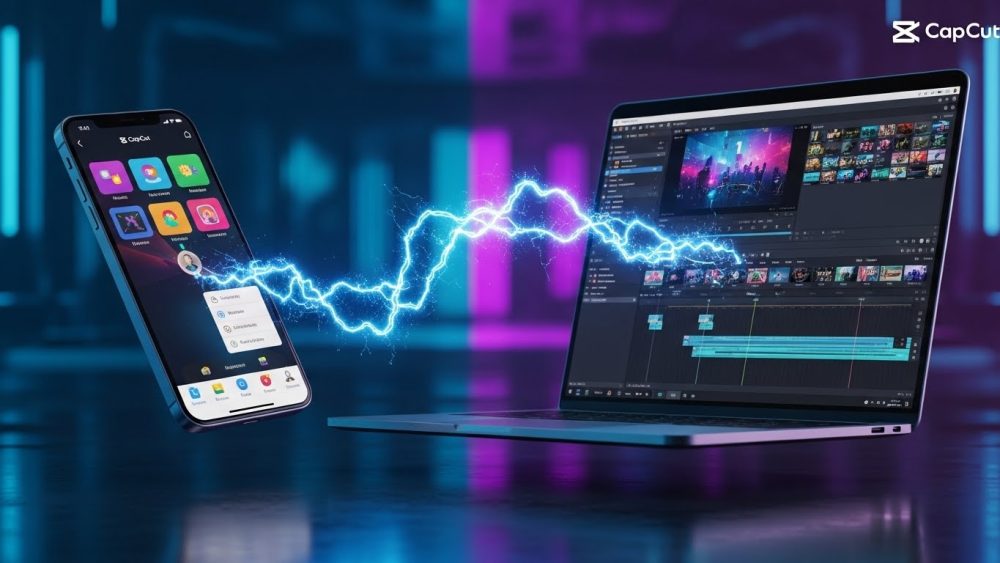
If you are looking for an honest CapCut PC vs Mobile review, you are probably wondering if this viral app is actually powerful enough for professional work or if it’s just a toy for TikTok trends. I remember when I first downloaded CapCut on my phone two years ago. I was skeptical. I had spent years learning complex software like Adobe Premiere Pro and DaVinci Resolve. How could a free mobile app possibly compete?
Then I edited a 60-second reel in 10 minutes that would have taken me an hour on Premiere. I was hooked. But recently, ByteDance (the parent company) launched the desktop version for Windows and Mac, aiming to challenge the big players.
Does the desktop version hold up? Or should you stick to your phone? In this comprehensive review, I will break down the pros, cons, and hidden features of both versions. Whether you are a YouTuber, a business owner, or just someone who wants to make cool travel videos, this guide will help you decide if CapCut is the right tool for your workflow.
1. Interface and Usability: The “Drag-and-Drop” King
The biggest selling point of CapCut is its accessibility. Most professional editors have a steep learning curve. CapCut, however, is intuitive by design.
-
Mobile Experience: The mobile app is designed for thumbs. The timeline is magnetic (clips snap together), and features like “Auto Velocity” or “3D Zoom” are just one tap away. It feels less like editing and more like playing a game.
-
PC/Mac Experience: The desktop version keeps the simplicity but gives you a traditional layout: Timeline at the bottom, preview in the center, and library on the top left.
If you are migrating from Premiere Pro, the PC version will feel familiar but simplified. It supports keyboard shortcuts (J, K, L cuts), which is a massive speed booster. However, for absolute beginners, the mobile app is still faster to master.
2. Features Deep Dive: What Can It Actually Do?
You might think a “free” editor lacks power. You would be wrong. Both versions include features that usually cost hundreds of dollars in other software.
The AI Advantage: This is where CapCut destroys the competition.
-
Auto Captions: It can automatically transcribe your audio into subtitles with 90% accuracy. On mobile, you can even add “karaoke-style” animations instantly.
-
Background Removal: You don’t need a green screen. CapCut’s AI can cut a person out of a background surprisingly well.
-
Text-to-Speech: The viral “TikTok Voice” lives here.
Desktop Exclusive Features: While the mobile app is great for effects, the Desktop version shines in precision.
-
Keyframing: On PC, you have granular control over position, scale, and opacity keyframes. It is much harder to be precise with a fat finger on a small screen.
-
Color Grading: The PC version supports LUTs (Look Up Tables) and gives you adjustment wheels that are easier to fine-tune with a mouse.
3. Performance and Stability: The “Lag” Test
I tested both versions on a mid-range laptop (Windows 10, 16GB RAM) and an iPhone 13.
-
Mobile: The optimization is insane. Even with 4K footage, the app rarely crashes. It handles multiple layers of text and stickers without breaking a sweat.
-
PC: This is a mixed bag. It runs smoothly on M1/M2 Macs, but on Windows, it can be resource-heavy. If you are editing 4K footage on an older laptop, you might experience proxy lag. It is definitely lighter than Premiere Pro, but it isn’t magic.
4. The “Pro” Subscription: Is It Worth It?
CapCut is technically free, but they are pushing the “Pro” subscription aggressively. As of 2025, the Pro version costs around $7.99/month. What do you get?
-
100GB Cloud Storage (to sync projects between Phone and PC).
-
Premium transitions and effects.
-
Advanced AI features (like AI color correction).
My Verdict: For 90% of users, the Free Version is enough. The free stock library is huge. Only upgrade if you need cloud syncing to start an edit on your phone and finish it on your PC.
5. The Privacy Concern: The Elephant in the Room
We cannot talk about CapCut without mentioning its owner: ByteDance (the creators of TikTok). There have been concerns about data privacy and server locations. According to reports from Mozilla, CapCut collects a significant amount of user data, including device identifiers and usage data.
If you are editing sensitive corporate videos or confidential content, you might want to stick to offline editors like DaVinci Resolve. But for social media content, travel vlogs, and hobby projects, most users accept the tradeoff for the free features.

6. Who Should Use What? (The Final Decision)
Here is my breakdown based on different user types:
-
The Social Media Manager: Use Mobile. The templates and trending sounds are integrated. You can shoot, edit, and post in 10 minutes.
-
The YouTuber / Vlogger: Use PC/Desktop. You need the screen real estate to manage B-roll, sound effects tracks, and precise cuts. Editing a 10-minute video on a phone is a nightmare for your neck.
-
The Hybrid Creator: Use Both. I often sync my iPhone footage to the cloud, do the rough cut on my phone while commuting, and then fine-tune the color and audio on my desktop at home.
Frequently Asked Questions (FAQs)
Q: Does CapCut put a watermark on my videos? A: On the mobile version, it adds an ending clip with the logo, but you can delete it manually every time or turn it off in settings. It does not watermark the middle of your video like other free apps.
Q: Can CapCut export 4K? A: Yes, both versions support exporting up to 4K 60fps. The quality is surprisingly high for a free tool.
Q: Is DaVinci Resolve better than CapCut? A: DaVinci Resolve is a Hollywood-grade tool. It is better for color grading and professional audio mixing, but it has a massive learning curve. CapCut is better for speed, stickers, and social media trends.
Conclusion
In the battle of CapCut PC vs Mobile review, there is no clear loser. The mobile app is the king of convenience and trends, while the desktop version is a formidable entry-level editor for YouTubers. It has democratized video editing, making high-end features accessible to everyone. My advice? Download both. They are free, powerful, and might just be the only editing tools you ever need.