
Introduction
If you are reading this password manager guide, it is likely because you just clicked “Forgot Password” for the fifth time this month. We have all been there. You try to log in to Netflix, but your usual password doesn’t work. You try Password123!. You try your dog’s name. Nothing. Frustrated, you reset it, only to be told, “New password cannot be the same as the old password.” It makes you want to scream.
Most of us cope with this frustration by committing the cardinal sin of cybersecurity: Password Reuse. We use the same password for our bank, our email, and that random pizza delivery site.
I used to do this too. Then, I received a notification that my email was found on the Dark Web. A hacker had breached a small, insecure website I used years ago, stole my password, and was using it to try and unlock my Amazon account. That panic attack was my wake-up call.
In this deep-dive guide, I will explain why your brain is incapable of creating secure passwords, how “Credential Stuffing” works, and why using a password manager is the single most important step you can take to secure your digital life in 2025.
1. The “Credential Stuffing” Nightmare
Why is reusing passwords so dangerous? Hackers rarely “guess” your password. They use a technique called Credential Stuffing.
Here is how it works:
-
Hackers breach a poorly secured website (e.g., an old fitness forum) and steal 1 million emails and passwords.
-
They write a script (bot) to try those email/password combinations on high-value sites like PayPal, Gmail, and Amazon.
-
Because 65% of people reuse passwords, thousands of those accounts unlock instantly.
According to Have I Been Pwned (a resource created by security expert Troy Hunt), billions of accounts have been compromised this way. If you use the same password everywhere, you are giving hackers a master key to your entire life. This reality check is the foundation of any serious password manager guide.
2. What is a Password Manager? (The Digital Vault)
A Password Manager is an encrypted digital vault that generates, stores, and autofills your passwords for you. Instead of remembering 50 weak passwords (like Mustang1990), you only have to remember one strong “Master Password.”
The Science of “Zero-Knowledge” Architecture: You might worry: “What if the Password Manager company gets hacked? Will they steal all my passwords?” Reputable managers (like 1Password or Bitwarden) use Zero-Knowledge Encryption. This means your data is encrypted on your device before it is sent to their servers. The company does not know your Master Password. Even if the government or hackers raided their servers, they would only find scrambled gibberish that is mathematically impossible to read without your key.
3. How to Set It Up: The Master Password
The first step in this password manager guide is creating your Master Password. This is the only password you will ever need to memorize again, so it must be bulletproof.
Do NOT use:
-
Complex gibberish (e.g.,
J8#kL!2p). You will forget it. -
Personal info (e.g.,
SarahBirthday1985). It is easy to guess.
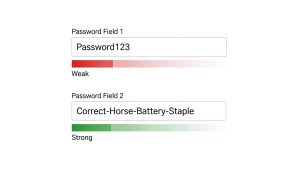
DO use a “Passphrase”: A passphrase is a string of 4-5 random words that creates a story in your head.
-
Example:
Correct-Horse-Battery-Staple(Famous XKCD example). -
My Example:
Purple-Monkey-Eating-Pizza.
This is easy for a human to remember (visualize a purple monkey eating pizza) but incredibly hard for a computer to crack due to its length (entropy).
4. The Feature That Changes Everything: Autofill
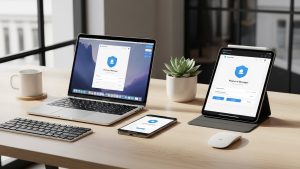
Once you install the manager (on your phone and browser), the magic happens. When you go to a login page, the manager detects the URL. You click one button, verify with your FaceID or Fingerprint, and it fills in the username and password instantly.
This protects you from Phishing (which we discussed in a previous article). If you click a fake link that looks like Google (e.g., goog1e.com), your password manager will say, “I don’t recognize this website” and refuse to autofill. It is a fail-safe against human error.
5. Top Recommended Tools for 2025
Not all managers are created equal. Here are the industry leaders:
-
Bitwarden: The best free option. It is open-source, meaning security experts constantly audit its code. It offers unlimited passwords on unlimited devices for free.
-
1Password: The premium choice. It has the best design and user experience. It includes “Watchtower,” which alerts you if a website you use has been hacked.
-
Apple Keychain / Google Password Manager: These are built-in and free. They are “good enough” for basic users but lack cross-platform compatibility (e.g., using iCloud Keychain on a Windows PC is painful).
6. The “What If I Die?” Question (Digital Inheritance)
This is morbid but necessary. If you get hit by a bus tomorrow, how will your spouse access the bank accounts? Password Managers like 1Password and Bitwarden have a feature called Emergency Access.
You designate a trusted contact (spouse, parent). If they request access, you get an email. If you don’t decline the request within a set time (e.g., 7 days), they are automatically granted access to your vault. This digital estate planning is a crucial, often overlooked benefit.
Frequently Asked Questions (FAQs)
Q: Is writing passwords in a notebook safe? A: Paradoxically, yes. It is safer than reusing passwords. A hacker in Russia cannot read a notebook in your desk drawer. However, a notebook can’t autofill, can’t detect phishing, and can be lost in a fire. A digital manager is superior for convenience and backups.
Q: What happens if I forget my Master Password? A: Because of Zero-Knowledge encryption, the company cannot reset it for you. If you lose it, you lose your data. The Fix: Write your Master Password down on a piece of paper and lock it in a physical fireproof safe or give it to a trusted relative. This is your “Emergency Kit.”
Q: What about Two-Factor Authentication (2FA)? A: A password manager doesn’t replace 2FA; it enhances it. Most managers can also store your 2FA codes (replacing Google Authenticator), making the login process seamless.
Conclusion
Security is not about being paranoid; it is about being prepared. By following this password manager guide, you eliminate the stress of forgetting logins and the terror of being hacked. You create a unique, complex password for every single account, and you never have to type them again. It is the rare technology that makes you more secure while making your life easier. Download one today.